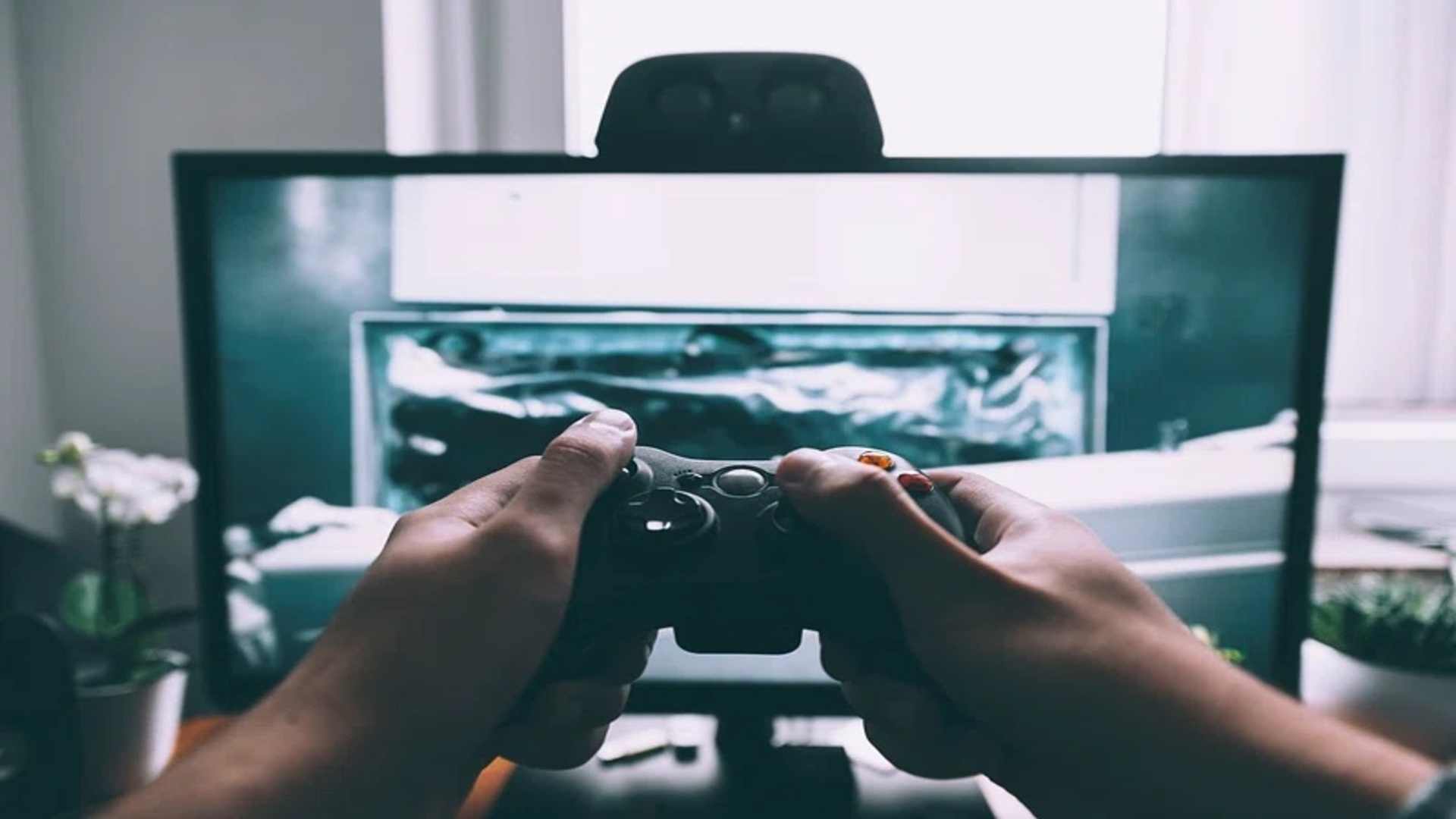
Connecting a PlayStation 5 DualSense controller to a PC offers an excellent gameplay experience, but technical hiccups can sometimes prevent the gamepad from pairing properly. Whether you prefer a wired USB connection or wireless Bluetooth play, connection failures can stem from hardware limitations, software conflicts, or outdated drivers. Identifying the underlying cause is the fastest way to get your setup back up and running smoothly.
Common Technical Reasons for Connection Failures
One of the primary culprits behind connection issues is an improper USB cable. Many USB-C cords are designed purely for charging power rather than transferring high-speed data, preventing Windows from detecting the controller. Replacing a charge-only cord with a dedicated data-capable cable often resolves wired setup problems instantly.
Bluetooth pairing problems are equally frequent when attempting a wireless connection. Existing paired profiles on the PC or nearby consoles can trigger interference, blocking new pairing attempts. Gamers keeping up with daily gaming news often notice that operating system updates can occasionally reset wireless device configurations unexpectedly.
Troubleshooting Wired and Wireless Connections
For wired connections, try swapping the USB port on your computer, ideally connecting directly to the motherboard ports on the back of desktop setups. Avoid using unpowered USB hubs, as they may not supply enough power for the DualSense hardware to establish a stable handshake. Resetting the controller by inserting a small pin into the hole on its back can also clear temporary memory glitches.
If Bluetooth is failing, remove the DualSense from your computer's Bluetooth settings and attempt a clean pairing sequence. Hold down the Create button and the PS logo button simultaneously until the light bar flashes rapidly to enter pairing mode. Ensure your PC's Bluetooth adapter is updated with the latest drivers from the hardware manufacturer.
Configuring Steam and Third-Party Drivers
Windows does not natively support every feature of the DualSense controller out of the box for non-Steam applications. Steam provides built-in PlayStation Controller Support, which translates inputs smoothly for your library once enabled in the controller settings menu. Enabling support for PlayStation gamepads within Steam eliminates most game-specific input recognition issues.
For games outside of platforms like Steam, third-party software tools can emulate an Xbox controller layout for full compatibility. Keep your controller's internal firmware up to date using Sony's official firmware updater application for Windows. Keeping both Windows and controller firmware current guarantees the most stable connection possible.